Set Up Your Tech
Download Applications for Your Computer
Let’s confirm you have the following applications downloaded on your computer:
Google Chrome
Splashtop SOS
Feel free to sit back and relax while I get your accounts set up!
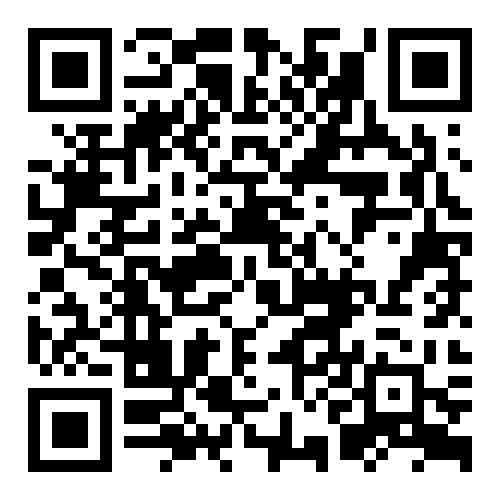

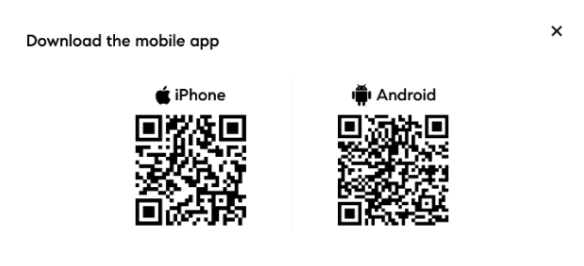
Please scan this QR code if you have an iPhone and still need to download the Okta Verify App.
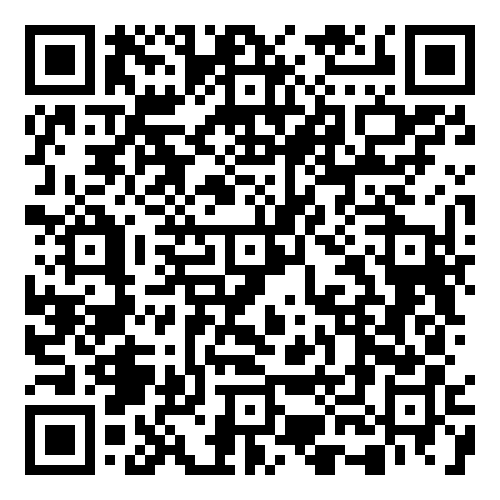
Please scan this QR code if you have an Android and still need to download the Okta Verify App.
Okta Verify:
Enable Push Notifications
Download Applications on Your Mobile Device
Let’s confirm you have the following applications downloaded on your mobile device:
Okta Verify
Home Platform Mobile App
Please scan the QR codes below (iPhone and Android users) if you still need to download the Home Platform Mobile App.
Passkey & Biometric Authentication
Let’s set up your biometric authenticator (TouchID on Mac or Windows Hello on PC) for your Okta account. This allows you to securely verify your identity when signing into the tools and provides an additional way to access your account if you change devices or forget your password.
When the “Make Signing in Easier” screen appears, tap “Got it”
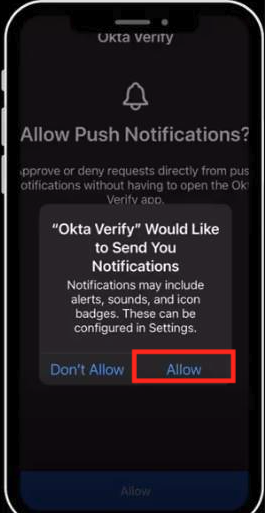
If prompted, tap “Allow” to enable push notifications. You may also choose to enable Face ID or passcode (you can do this now or later)
Once you see the “Account Added” screen, tap “Done”. Your Okta account is ready to go.
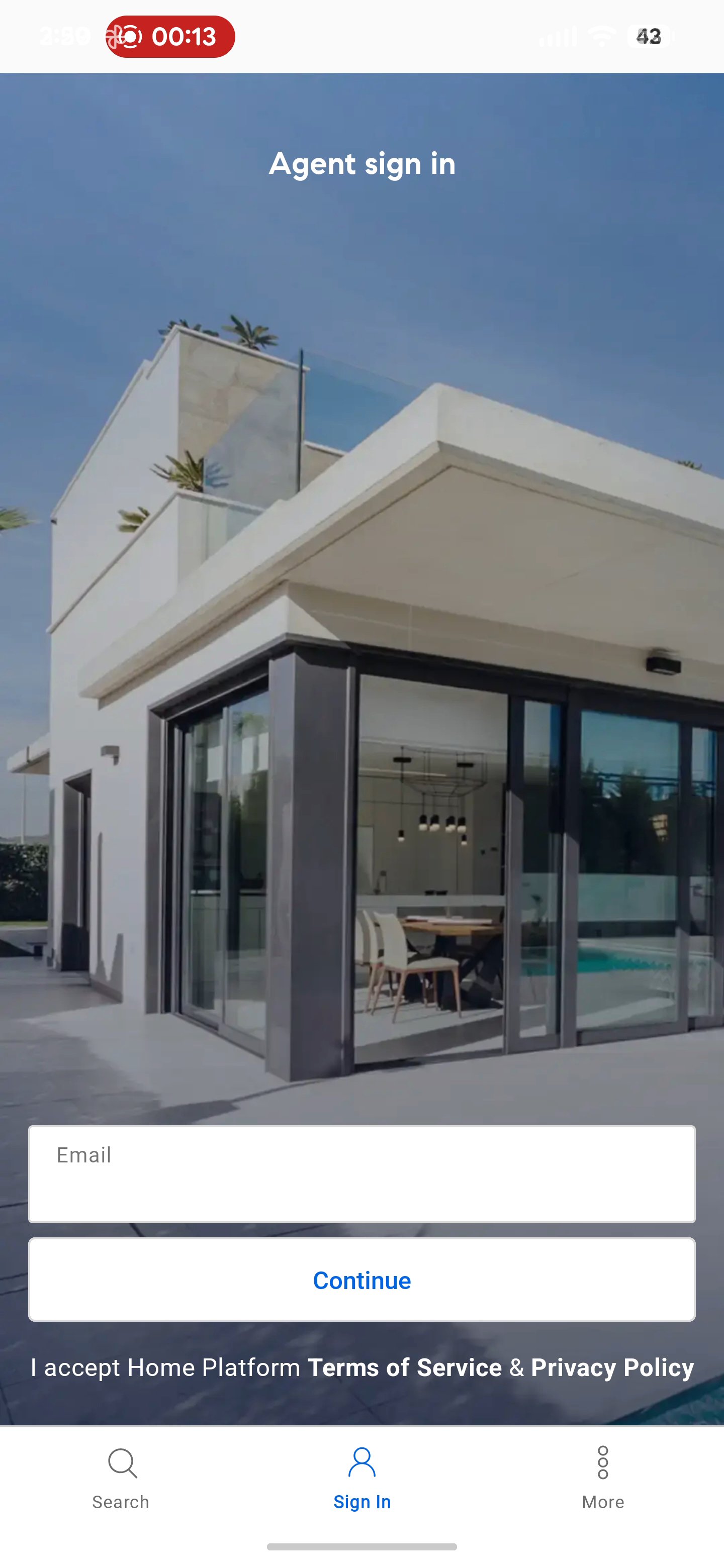
Home Platform Mobile App
Let’s get you logged in and connected to the Home Platform mobile App so you can manage your business on the go!
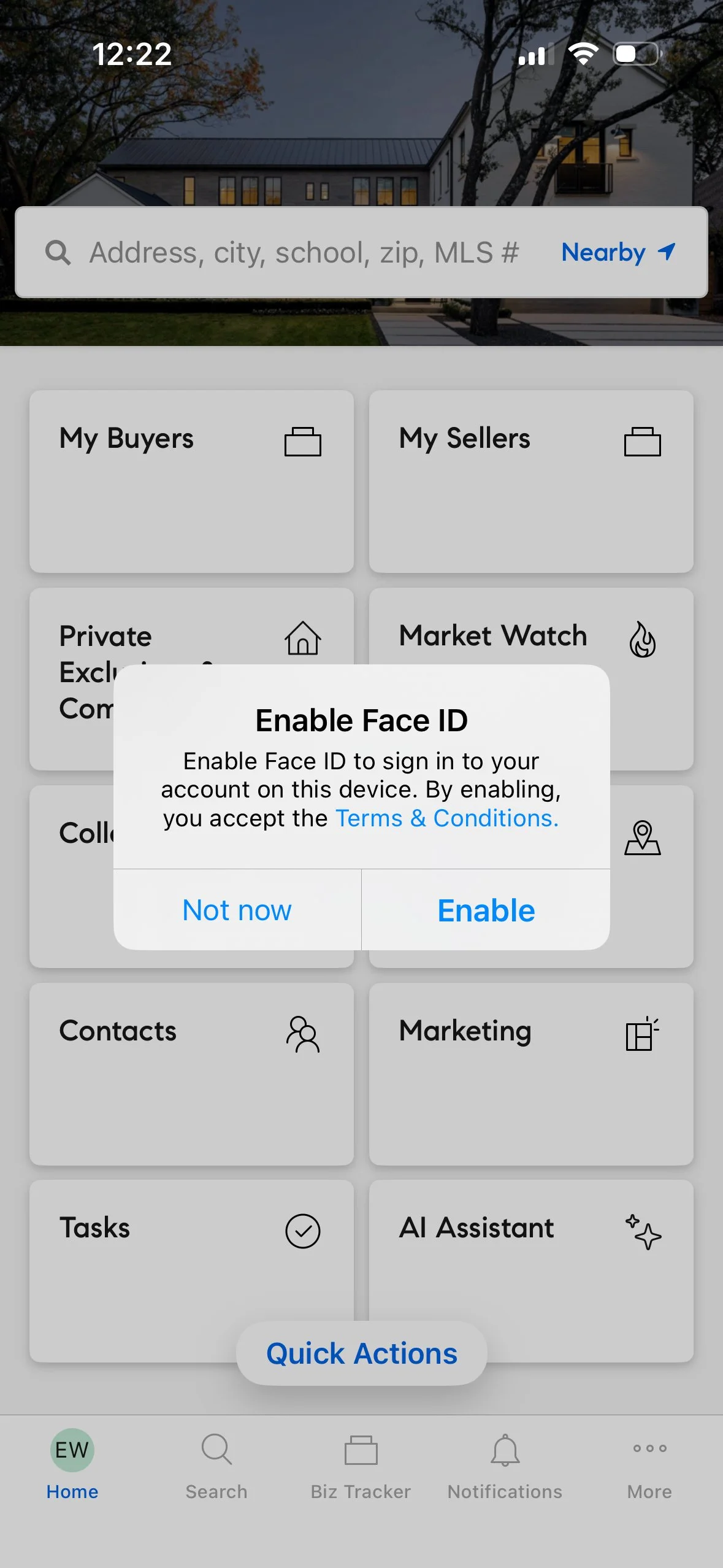
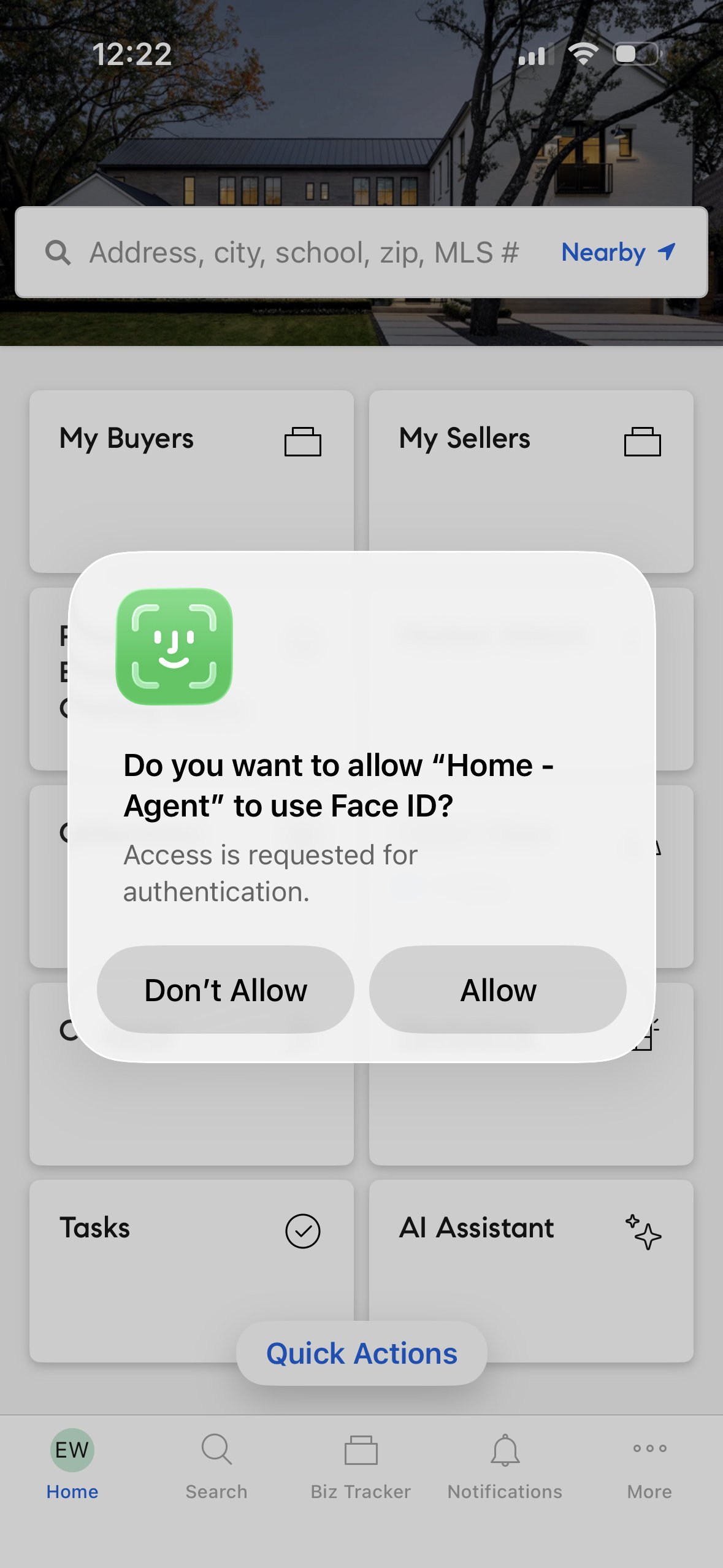
iPhone Users: Enable Face ID with the Home Platform Mobile App
Enabling Face ID for the Home Platform Mobile App allows you to bypass Okta Verify prompts for a full year.
Let’s get you logged into your email account on your mobile device.
Please identify which app you prefer for checking email:
Apple Mail
Microsoft Outlook
Mobile Email Set Up